How to add book spines
Share photos of your shelves and book spines and let others see what interests you. Others double-click on your books and ask questions if they want to know more – you choose whether to reply or update; it's up to you.
Image guidelines for book spines
For good search and presentation, images need to be clear and readable.
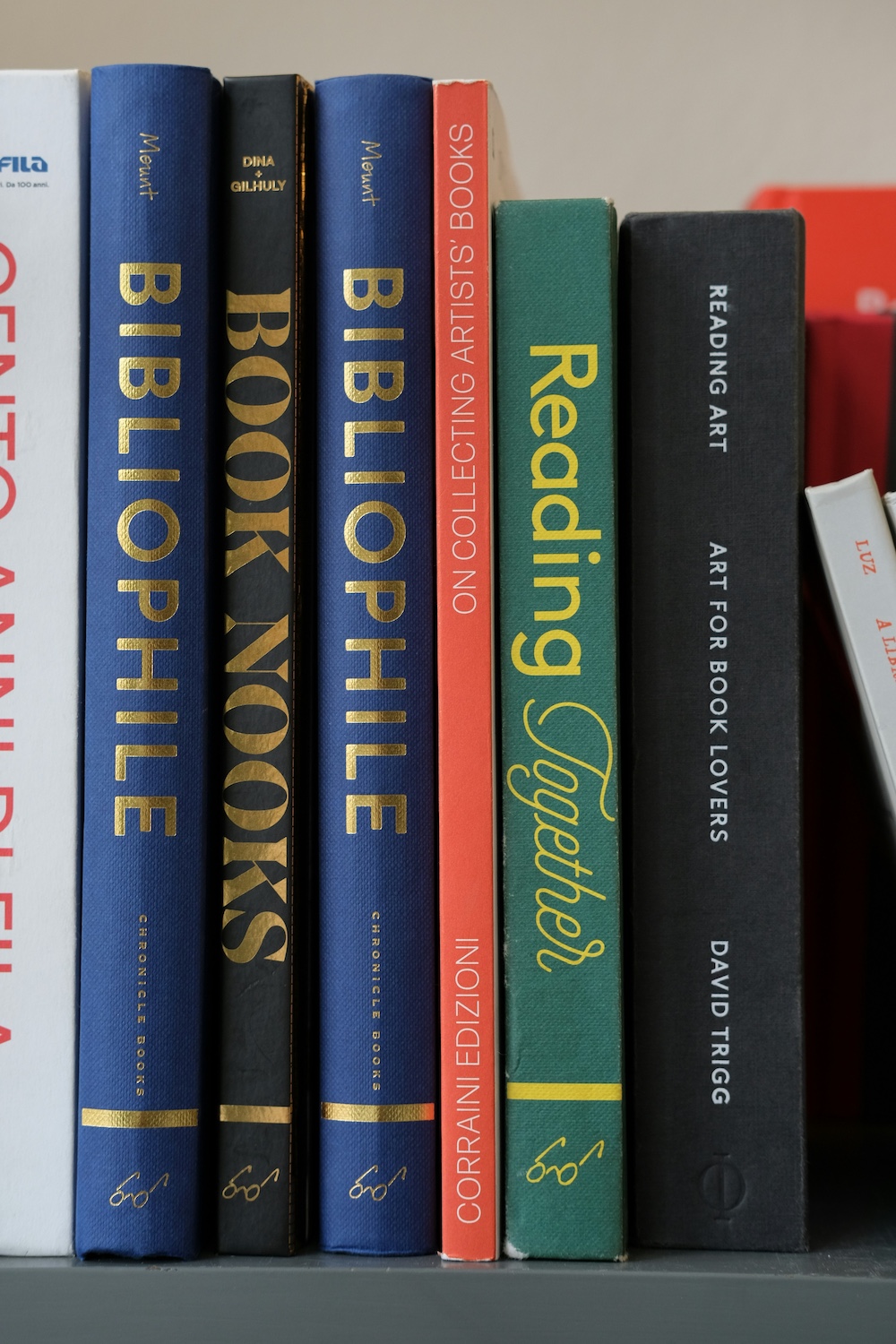
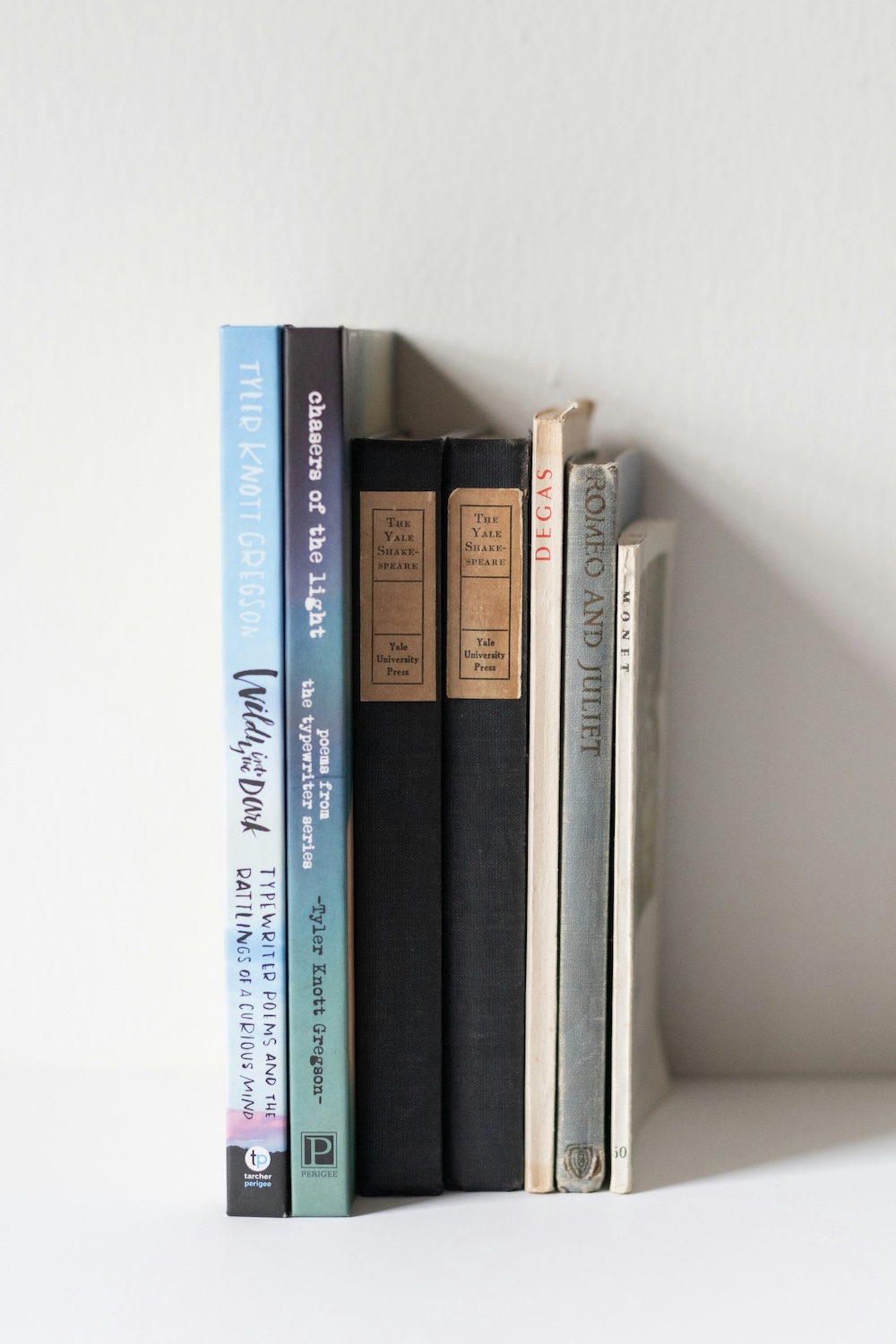
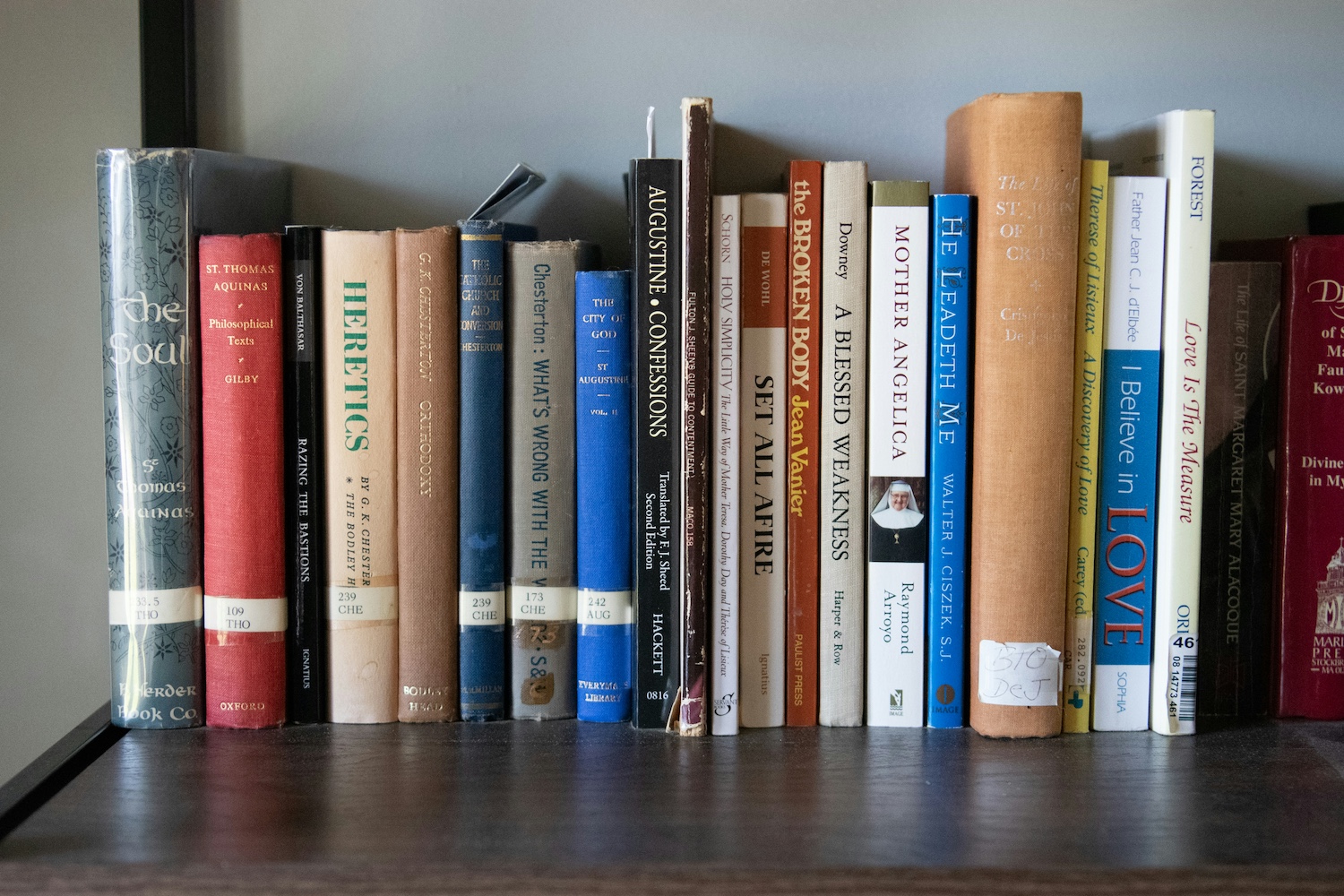
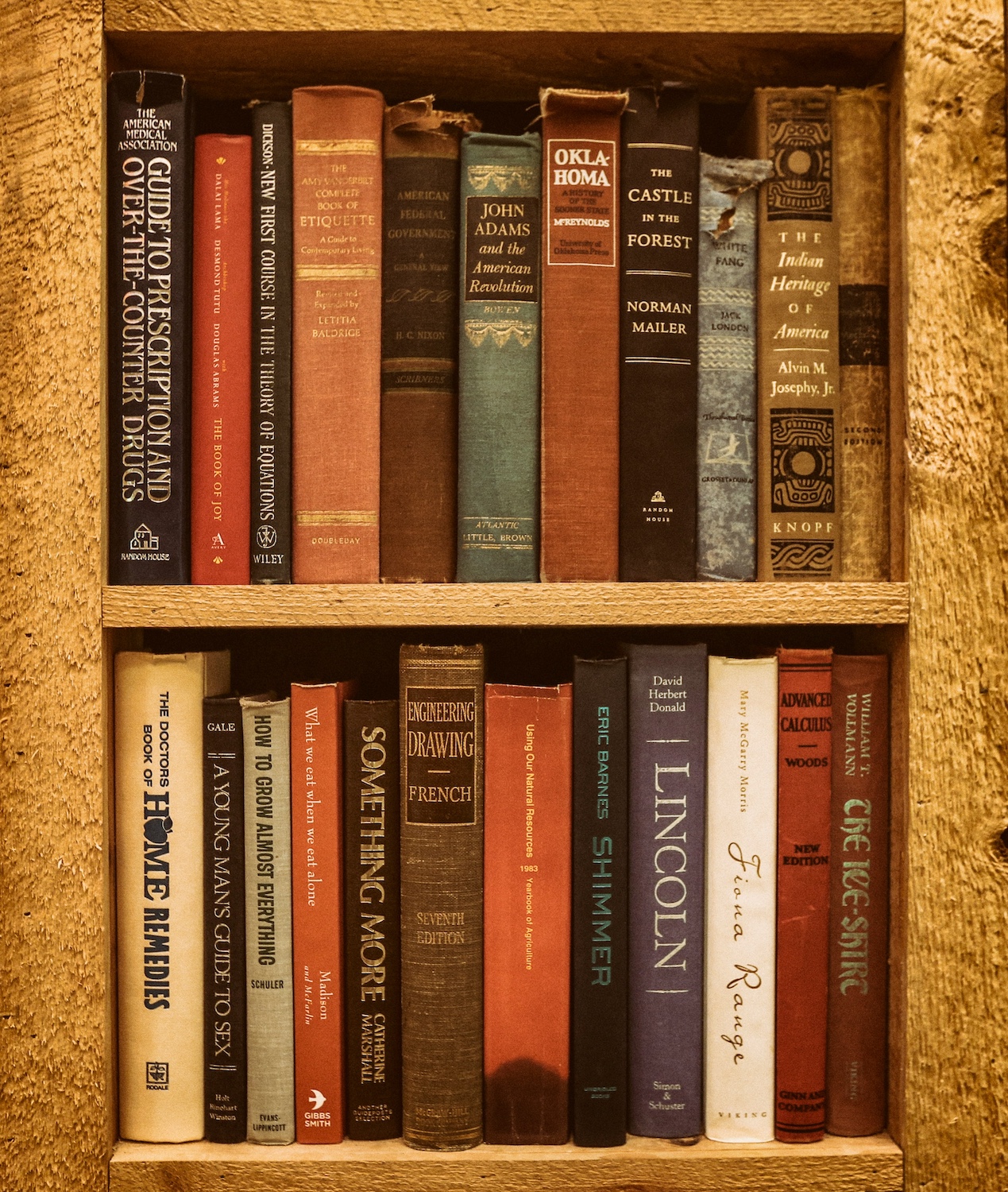
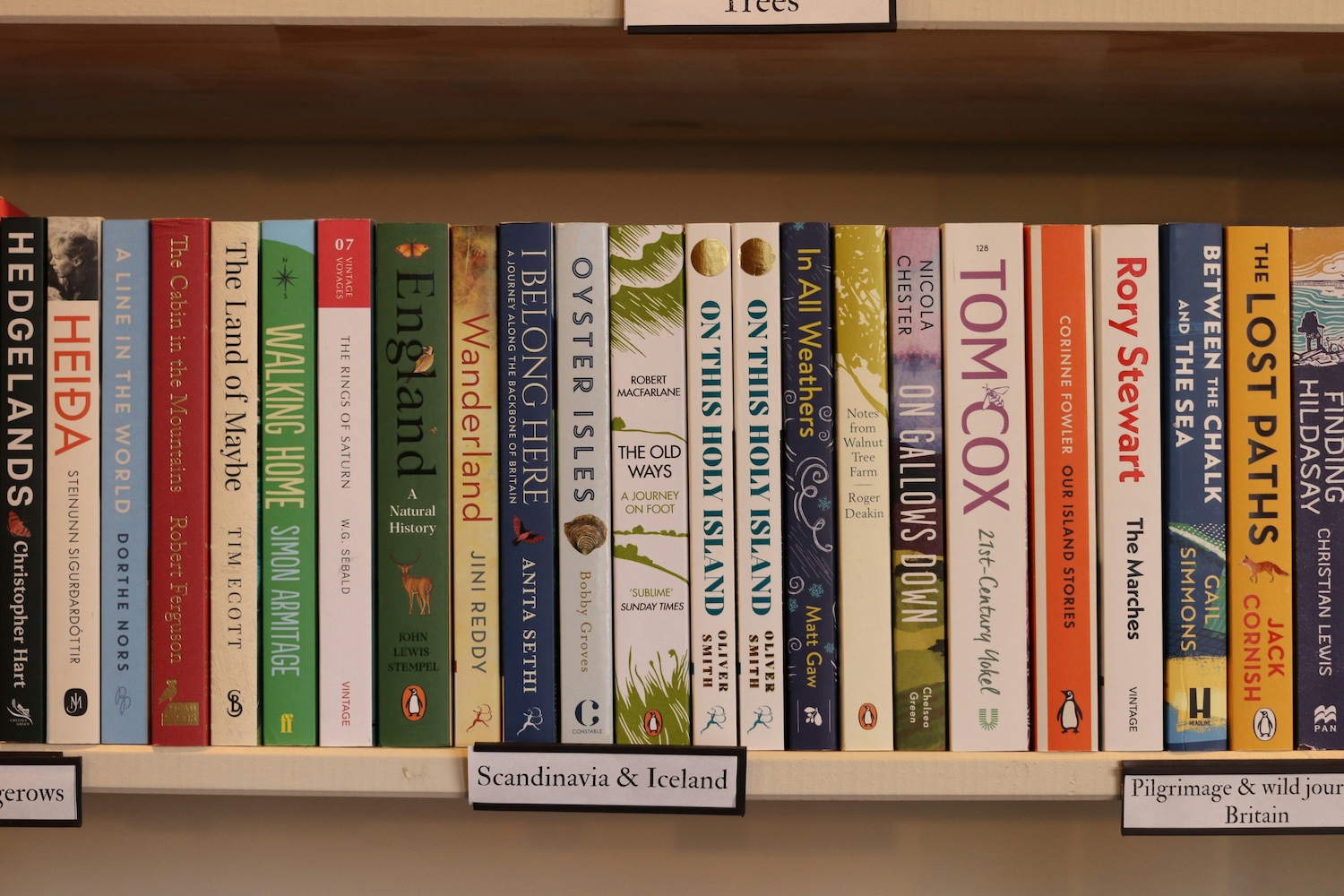
Do
Straight-on, readable spines, full books in frame.
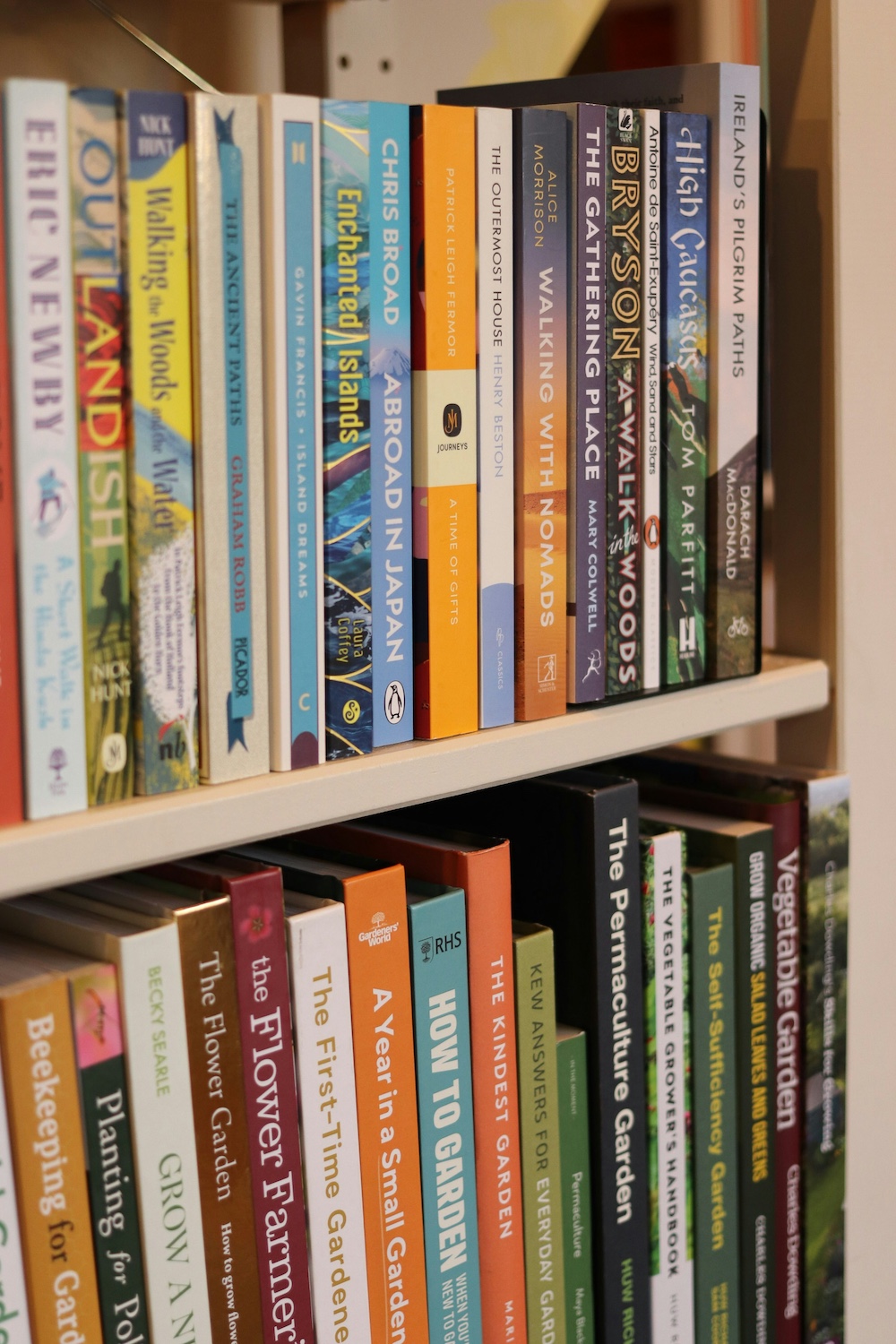
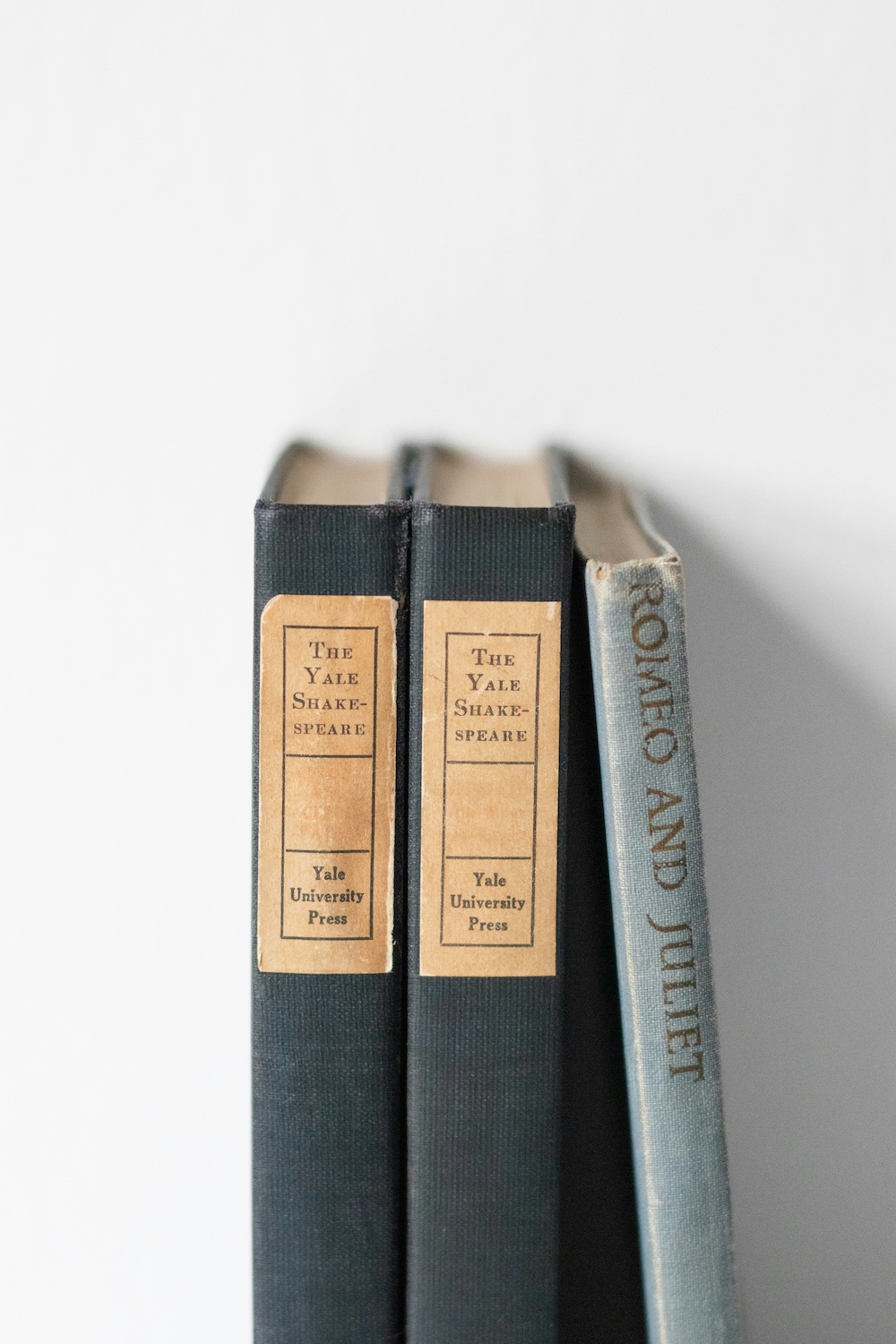
Don't
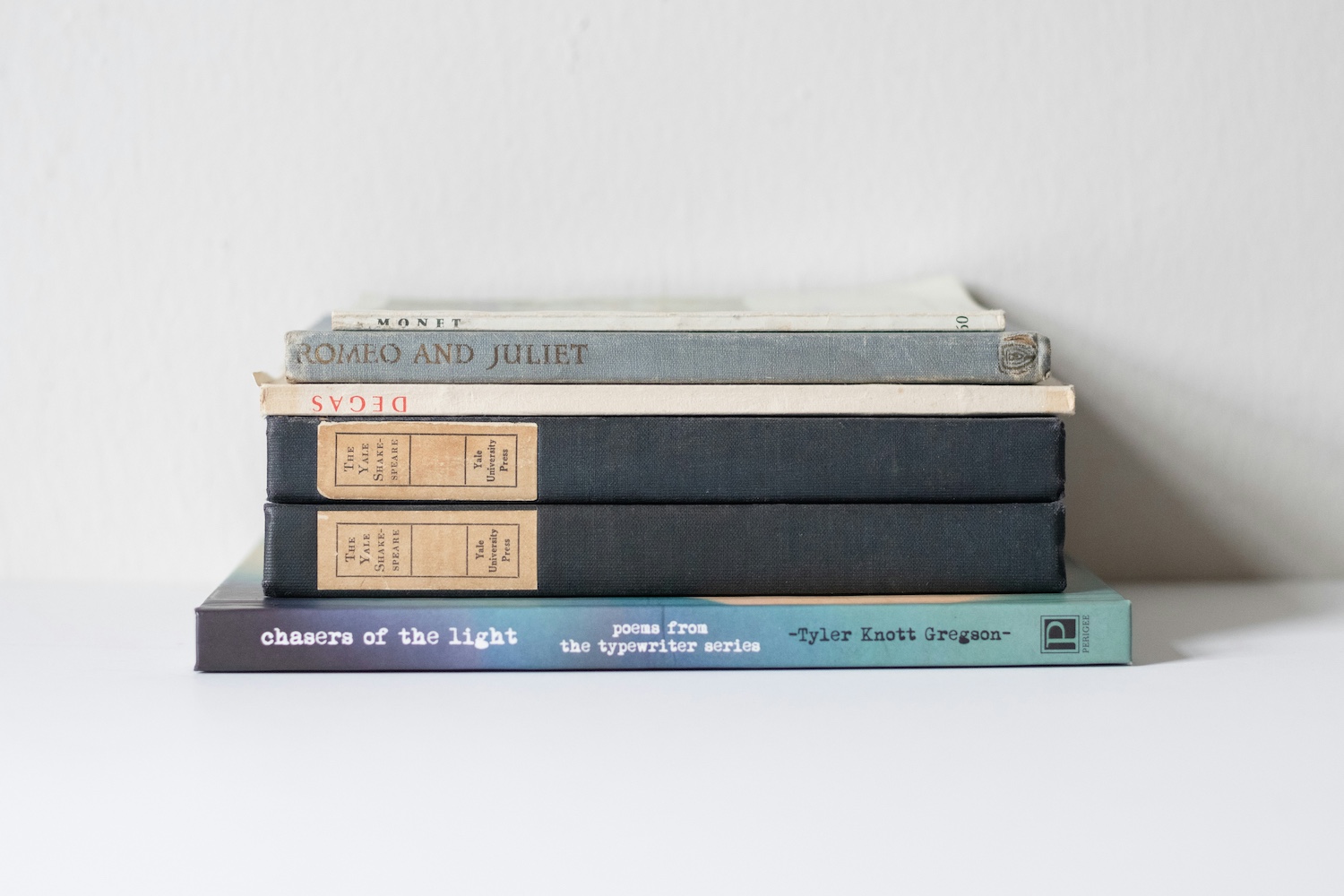
Avoid angles, cut-off books, or unreadable spines.
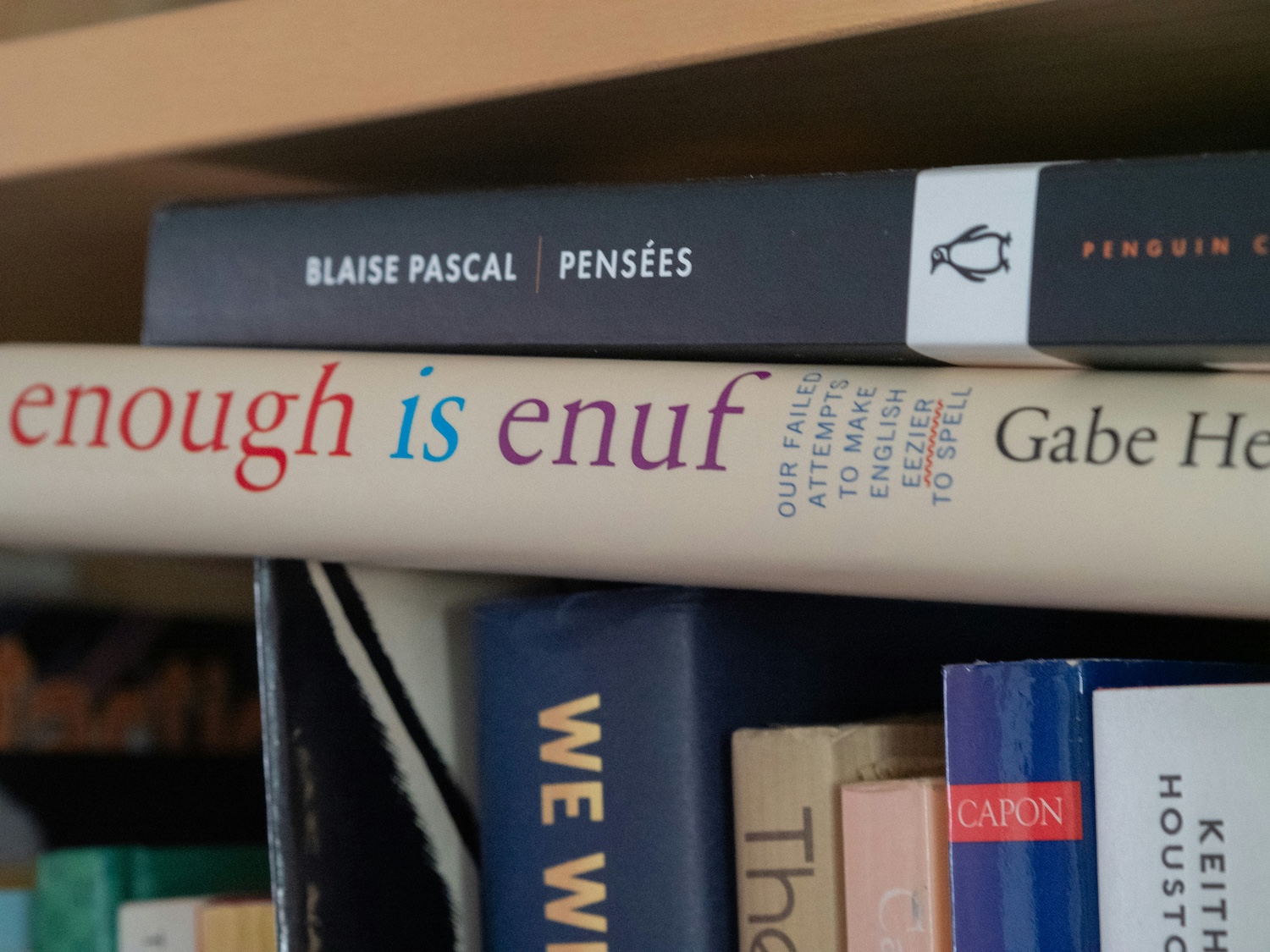
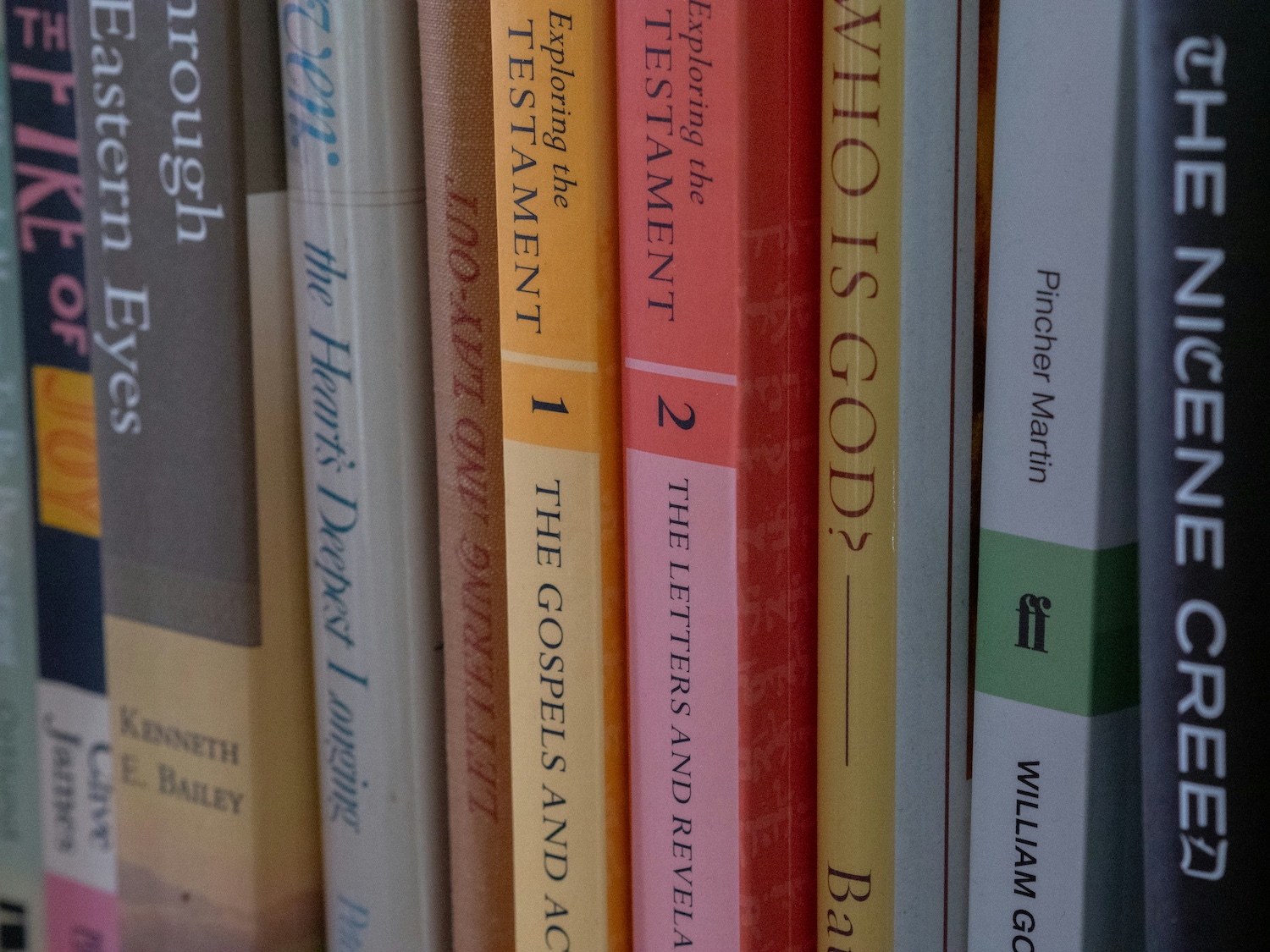
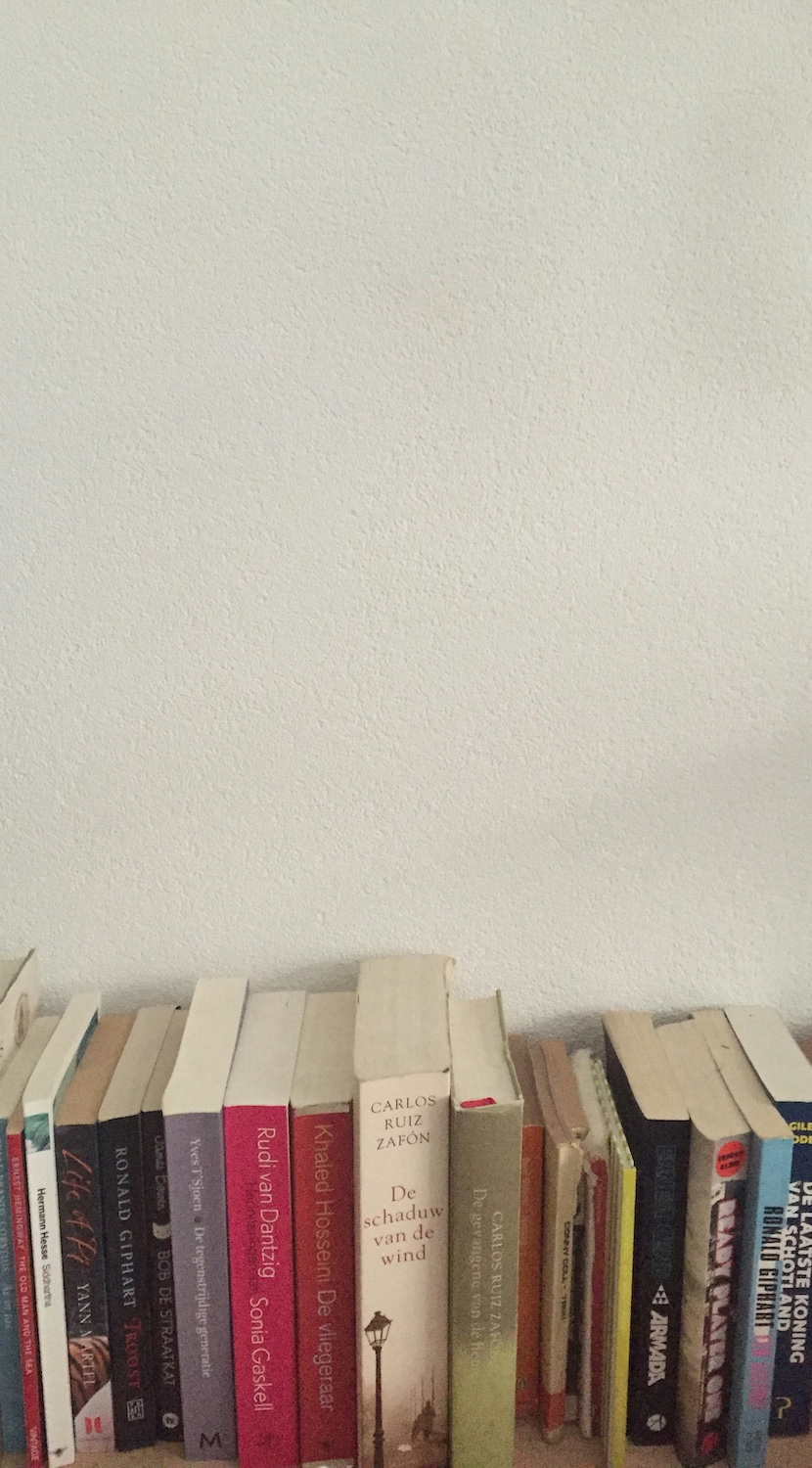
Taking photos
Take photos straight-on without an angle. Book spines should be readable if they have text. You can rotate, zoom and crop the image afterwards to get the desired view. Images that do not follow the guidelines may be removed by the administrator.
Adding book information
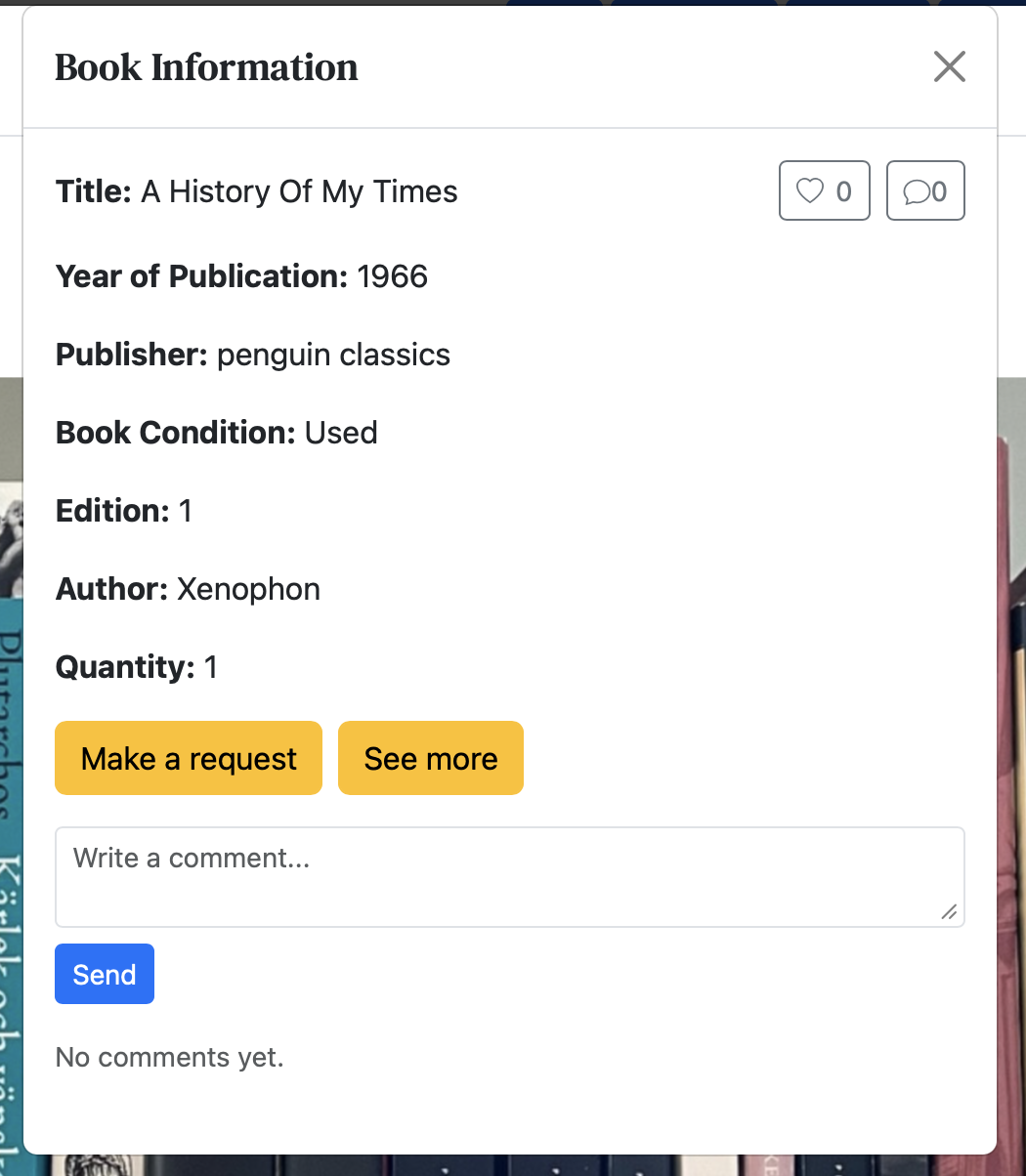
Add books to shelves or your wishlist. When you add book information to a spine, it appears as a green book icon on the shelf; hover or tap to see the title (e.g. “A History Of My Times”).
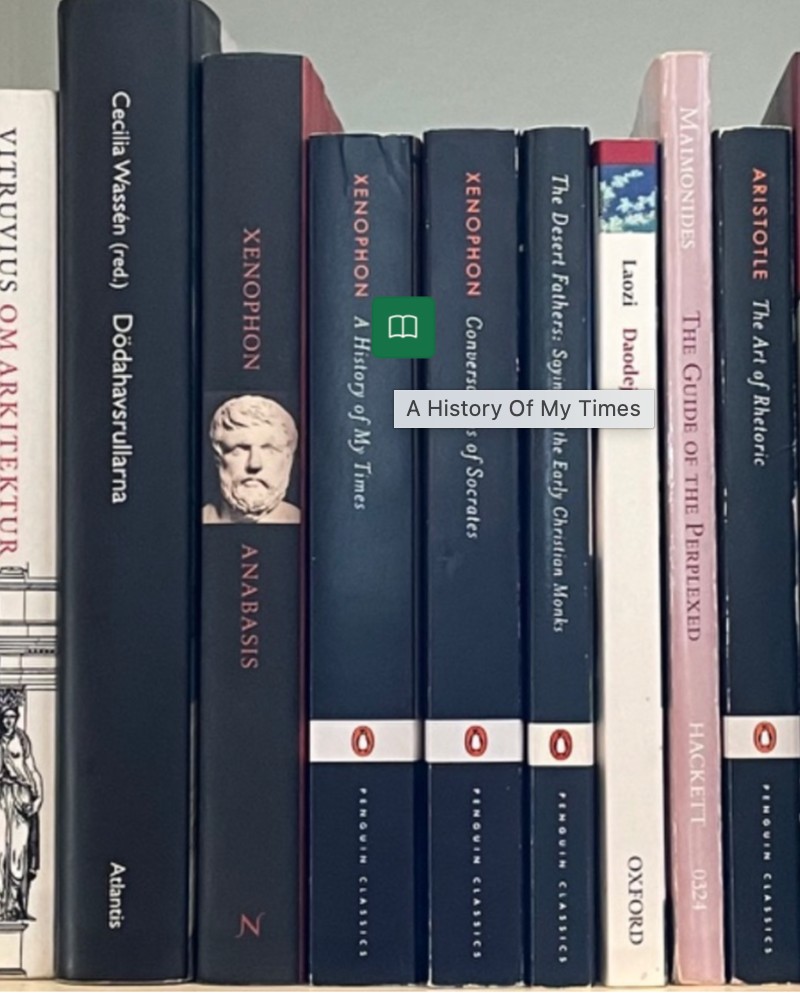
My Books is your one place to manage your whole home library. Add books with or without putting them on a shelf yet – you can add everything first and place them on shelves later. Filter by shelf (e.g. show only one shelf, or “Not in shelf”, or “Wishlist”), search by title, author or ISBN, and see total purchase cost and total retail value for your collection.
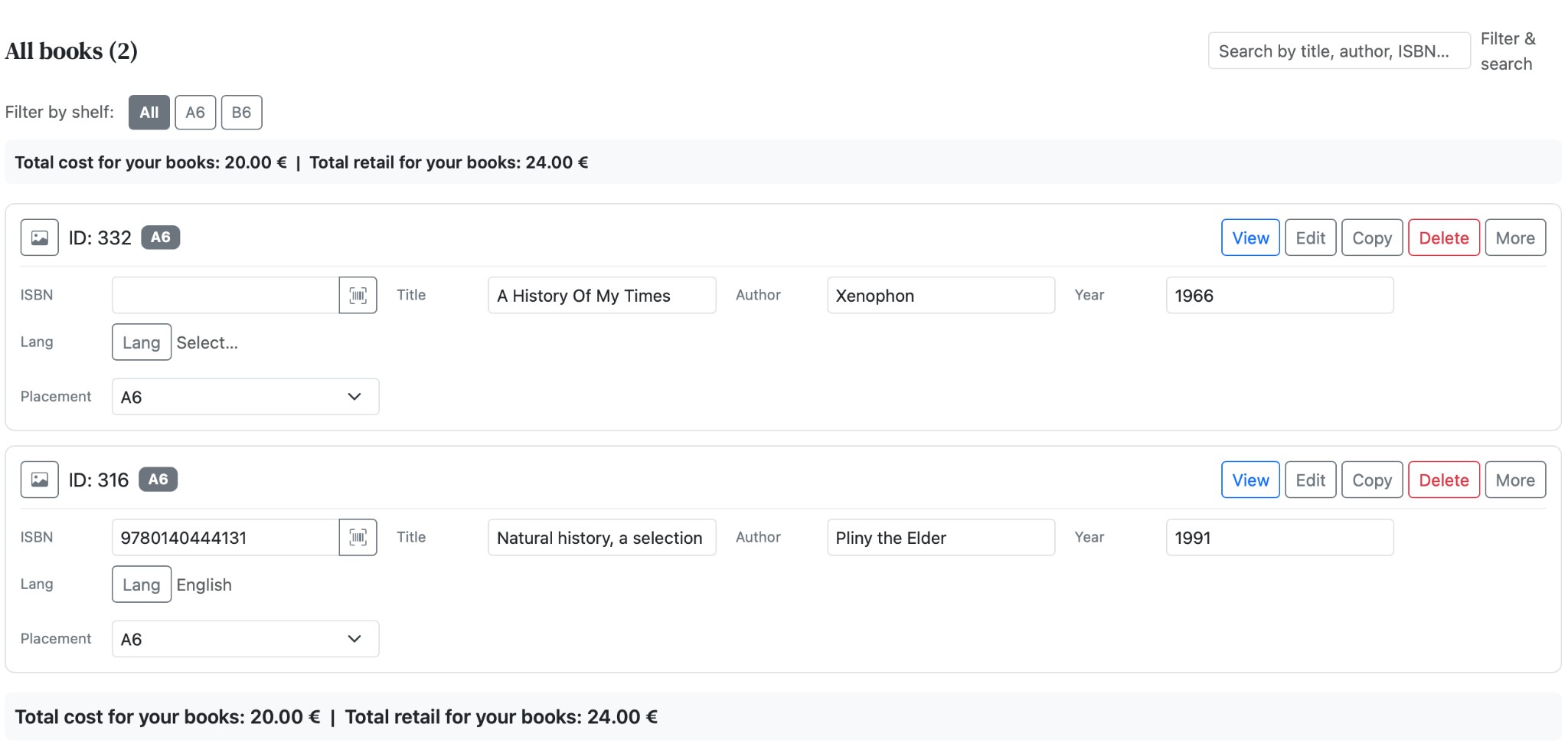
Scan the ISBN barcode with your phone or computer to fetch details from Open Library. The title field also searches Open Library so you can add books and fill in information quickly.
You stay in control: one list for all your books, a clear view of what is on which shelf or still unplaced, and optional tracking of purchase and sale prices.
Other features
- Double-click on a book to send a request for that specific book
- Like and comment on books and libraries
Open a book to like it or leave a comment. Sometimes you come across a book you love, or remember a phrase from it – don't be afraid to share your book memories.
Show the world your books, and get your shelves together! Totally free.